


Email migration is the process of moving your email archive to another provider can have its challenges but should proceed smoothly. As long as you use an experienced contractor or follow the right steps then your email archive and contacts should be available to you with the new provider as if you had always been using them.
In principle emails sitting on any mail server can be moved to a new provider and we discuss some tools and procedures in this blog post.
Reasons for moving email provider
There are several reasons for changing email provider / platform:
- Company change: A company merger or acquisition, where email archiving needs to be consolidated to a new platform
- Archive vendor change: Preserving existing archives when moving away from an email archive platform that has been ‘end of lifed’ or has become too costly.
- Email system change: Transitioning to a new email platform that includes archiving capabilities
- Platform change: A move from an on-premises email environment to the cloud.
- Requirements for additional features such as file sharing, online meetings and shared calendars.
- Better value for money with another email provider.
- Reliability and deliverability of the current platform is not acceptable, and you need a new email provider.
You and your colleagues are likely to have an archive of important emails that need to be retained and accessible on the new platform or with a new provider. Not only that, but the existing folder structure (including sub-folders), attachments and contacts also needs to be retained and transferred safely.
It’s an unwritten rule that you don’t know that you need an email until it’s been deleted so just assume that as much is retained as possible.
Moving your email archive – small scale email migration
The most reliable and thorough way of doing an email migration is to use your email client i.e. Microsoft Outlook, Mozilla Thunderbird and Apple Mail. These email programs allow you to export your email archive in a format suitable for uploading to the mail server
In principle the process follows these broad steps:
- Export the mailbox – taking great care to include sub-folders, sent items, contacts and attachments. Common formats include PST files (Personal Storage Table) from Outlook, MBOX file from Thunderbird and even CSV excel files.
- Delete the old email account from your email program – ensure that your new email account is setup and working with the new provider.
- Add the email account to your email client from the new provider – initially this will be like installing a completely new email account with no email archives.
- Import the exported mailbox into the new email account – this should then sync up with mail server, exporting your backed up emails to the mail server and recreating a local copy. This can take several hours depending on the size of your mailbox.
That’s the principle, however different email programs have different file formats and slightly different steps but the process is the same in principle.
Export PST file from Microsoft Outlook
Thankfully the process is well documented by Microsoft. There is a different procedure depending on whether you are using New Outlook or classic Outlook.
For example here are the initial steps for Classic Outlook:
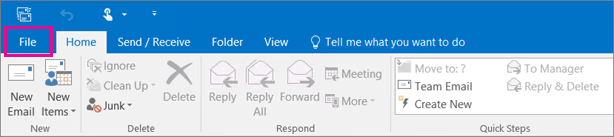
- At the top of the ribbon in classic Outlook, choose File.
- Choose Open & Export > Import/Export.
- Choose Export to a file > Next.
- Click Outlook Data File (.pst) > Next.
- Select the name of the email account to export, as shown in the picture below. Only information for one account can be exported at a time. Make sure that the Include subfolders check box is selected. This ensures that everything in the account will be exported: Inbox, Calendar, Contacts, and Tasks. Choose Next.
- Click Browse to select where to save the Outlook Data File (.pst). Enter a file name, and choose OK to continue.
- If you are exporting to an existing Outlook Data File (.pst), under Options, specify what to do when exporting items that already exist in the file.
- Choose Finish.
- Outlook begins the export immediately unless a new Outlook Data File (.pst) is created or a password-protected file is used (not recommended).
 See also these links:
Import email, contacts, and calendar from an Outlook .pst file
Import and export Outlook data from different apps and services
Export your emails from Mozilla Thunderbird
In Thunderbird there built-in Tools > Export feature to create a full backup (ZIP file) of your profile. This is fine if you only want to move to a new computer but not ideal if you want to change your email account to another provider as the account settings are retained.
Here are some steps for exporting individual emails and folders:
Export Individual Emails (EML or Text):
- Select the email(s) you wish to export.
- Right-click the selected emails and choose Save As….
- Select a destination folder and click Select Folder to save them as .eml files.
We recommend the free thunderbird add-ons ImportExportTools NG.
Using ImportExportTools NG (Advanced/Specific Folders):
- Install the ImportExportTools NG add-on via Add-ons and Themes.
- Right-click on a folder, choose ImportExportTools NG -> Export folder.
- Choose your format (MBOX, EML, PDF).
After installing the add-on, you access ImportExportTools by right-clicking on a folder. Here you can now export e.g. all folders of the account in one step. These are then saved – if desired also with subfolders – as files in MBOX format.
Export emails from Apple Mail
Apple Mail can import email messages that have been exported in mbox format from other email apps, and import mailboxes exported from Mail on a Mac. You can export mailboxes in mbox format.
- Go to the Mail app on your Mac.
- Select one or more mailboxes, then choose Mailbox > Export Mailbox.
- Choose a folder or create a new folder, then click Choose.
Mail exports the mailboxes as .mbox packages. If you previously exported a mailbox, Mail doesn’t overwrite the existing .mbox file; it creates a new .mbox file, such as My Mailbox 3.mbox.
See https://support.apple.com/en-gb/guide/mail/mlhlp1030/mac for more information.
We will cover larger scale multiple email migration tools in the next blog post.
Get in touch with Dinesh on 07941 686113 or contact us if you need help on web design, web hosting, SEO services or domain names.
Photo by Torsten Dettlaff
Photo by Burst